Scaling email production with Claude and Klaviyo integration
Generated by Klaviyo AI
Connecting Claude to Klaviyo through the Model Context Protocol enables automated account audits, email design, and production at scale. This workflow helps identify revenue opportunities you may have missed and reduces manual work by letting Claude generate and push email templates directly into Klaviyo.
- Automated audits rank opportunities: Claude analyzes your Klaviyo segments, flows, and campaigns, then ranks recommendations by estimated revenue impact and implementation effort
- Projects preserve brand context: storing brand guidelines, templates, and monthly audits in Claude projects lets it remember your account details across sessions for more consistent output
- Design-to-deployment pipeline: Claude Design creates emails from prompts and reference images, then Claude Code converts them into editable Klaviyo templates ready for review and sending
Familiarity can cause blind spots. In my 10 years running Klaviyo for ecommerce brands through my agency, Ypsómetro, I’ve learned that you can know an account too well. When you build the flows and read the reports yourself, you stop noticing what's broken, where opportunities lie, and how much you’re still doing manually.
Connecting Klaviyo to Claude broke that pattern. It looks at an account with none of my assumptions, and it catches what I’ve stopped seeing.
Claude's Model Context Protocol (MCP), Claude Design, and Claude Code each work well on their own. Klaviyo Composer does, too, analyzing campaigns, flows, and segments for growth opportunities.
Connect Claude and Klaviyo, and you get more out of both.
6 steps to scale email production
These 6 steps save time. Just as importantly, they check the account against the data, instead of running on habit. Here's how I built my process.
Step 1: Connect your accounts
Start by connecting Klaviyo and Claude. Go to Settings → Connectors → Add, then browse for Klaviyo. Approve the connection and choose your brand or client account. Close and reopen the Claude desktop app, then check Settings → Connectors to confirm you're connected.
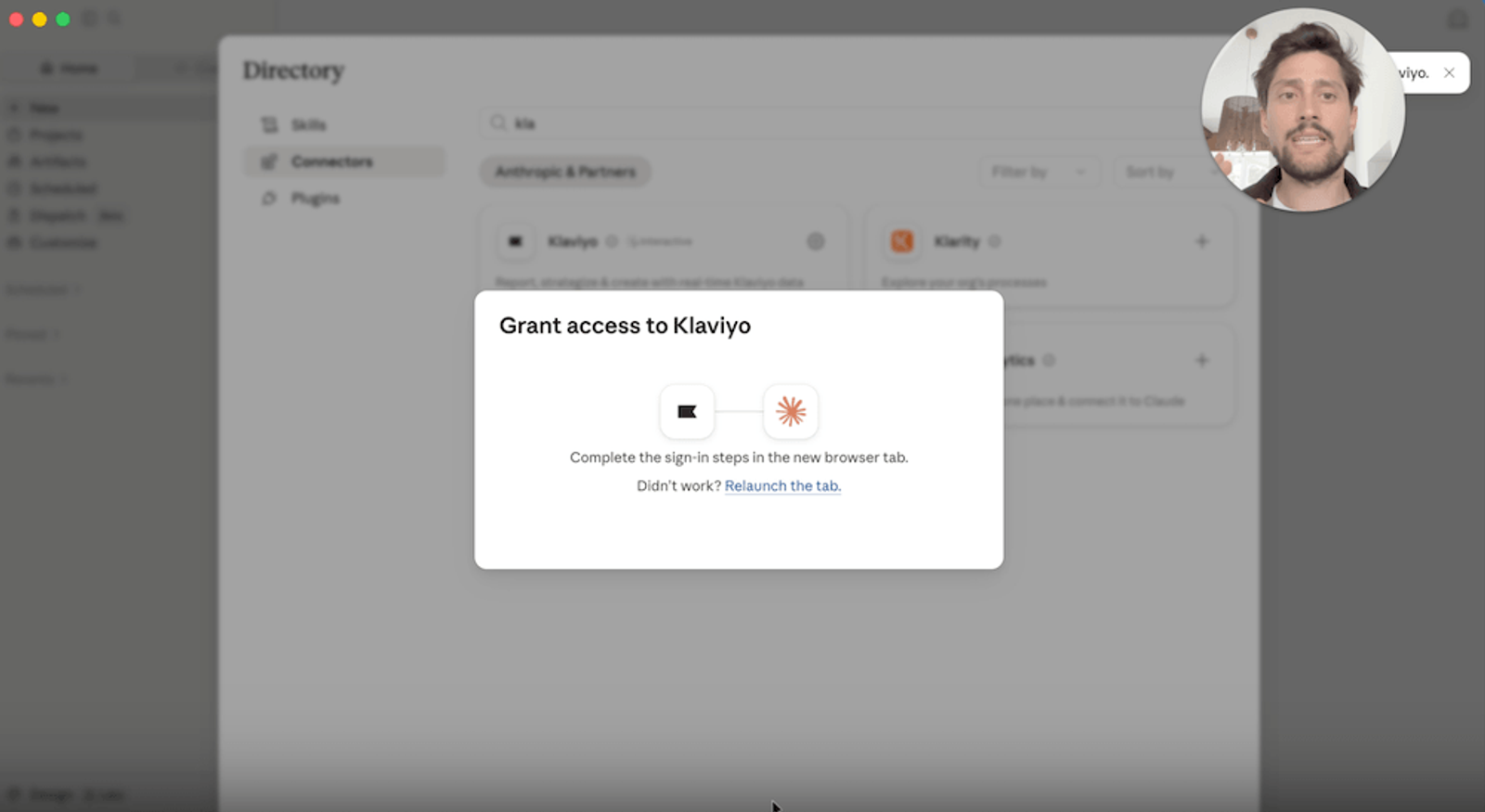
Set permissions carefully, here. If you're running a lot of reports, set read-only tools to "Always allow" so Claude doesn't ask permission every time it runs an audit. Keep writing and deleting permissions set to "Needs approval," so Claude can’t make changes on its own, like editing a live campaign or deleting one, without your sign-off.
Connect Shopify the same way. Shopify's live inventory data is a great cross-reference for Klaviyo, if you’re using Shopify.
Step 2: Run an account audit that ranks revenue opportunities
Once you're connected via Klaviyo’s MCP, run a prompt like:
"You're connected to [Brand]'s Klaviyo account through the MCP. Run a full audit of the account and identify the biggest opportunities to improve revenue. Rank each recommendation by estimated revenue impact and effort, focus on quick wins first, and finish with the top 5 actions to implement next."
Claude analyzes your segments, lists, flows, and campaigns, then ranks recommendations by estimated annual impact. In one audit I ran, Claude flagged a high-bounce abandoned-cart flow as a low-effort, high-impact fix to address right away, and estimated a $150,000–250,000 annual impact for reworking a campaign's creative and CTAs.
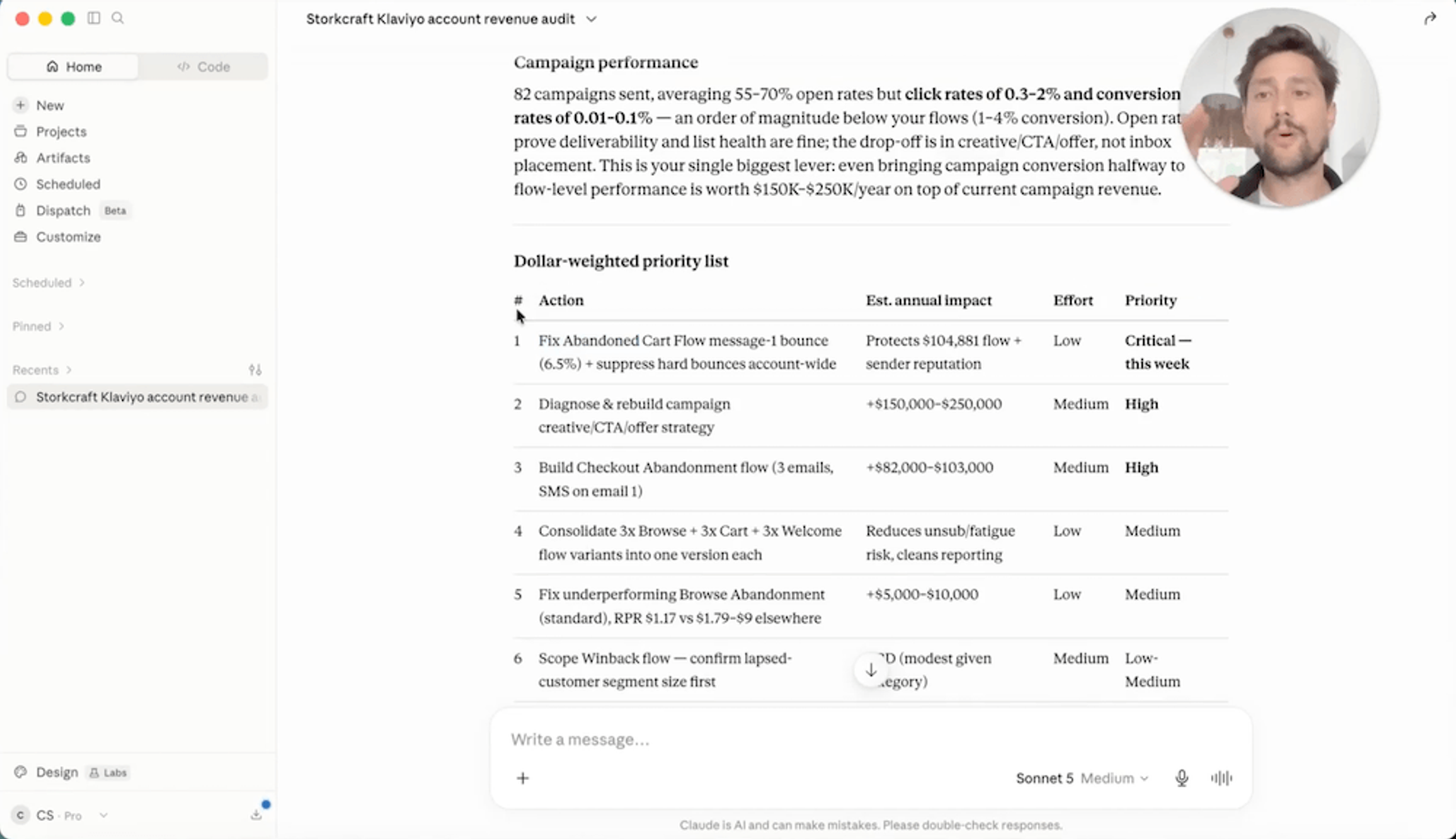
Once Claude finishes the audit, attach a PowerPoint or Google Slides template and ask Claude to summarize the findings in it. You'll get a polished audit deck ready to share with a brand or your manager.
Step 3: Add Klaviyo expertise with Claude skills
A basic prompt doesn't draw on expert Klaviyo knowledge. So, I've built skills that add that knowledge directly. Under Settings → Skills, I've built one that gives Claude the core framework and data-collection protocol a specialist would use, plus visual formatting so the output looks polished.
Once you load that skill into a session, Claude's recommendations get sharper, because it's starting from specialist-level knowledge instead of a blank slate.
Step 4: Give Claude memory with projects
A regular chat session forgets context once you close it or start a new one, but projects let Claude learn and remember your account.
I keep a project per brand with example templates, brand guidelines, and instructions like "You are a senior Klaviyo retention operator working on this account." I upload each month's audit PDF so Claude retains the numbers, and I maintain a running memory section covering account details, campaign calendar, production status, and a roadmap of what's built and what's still needed.
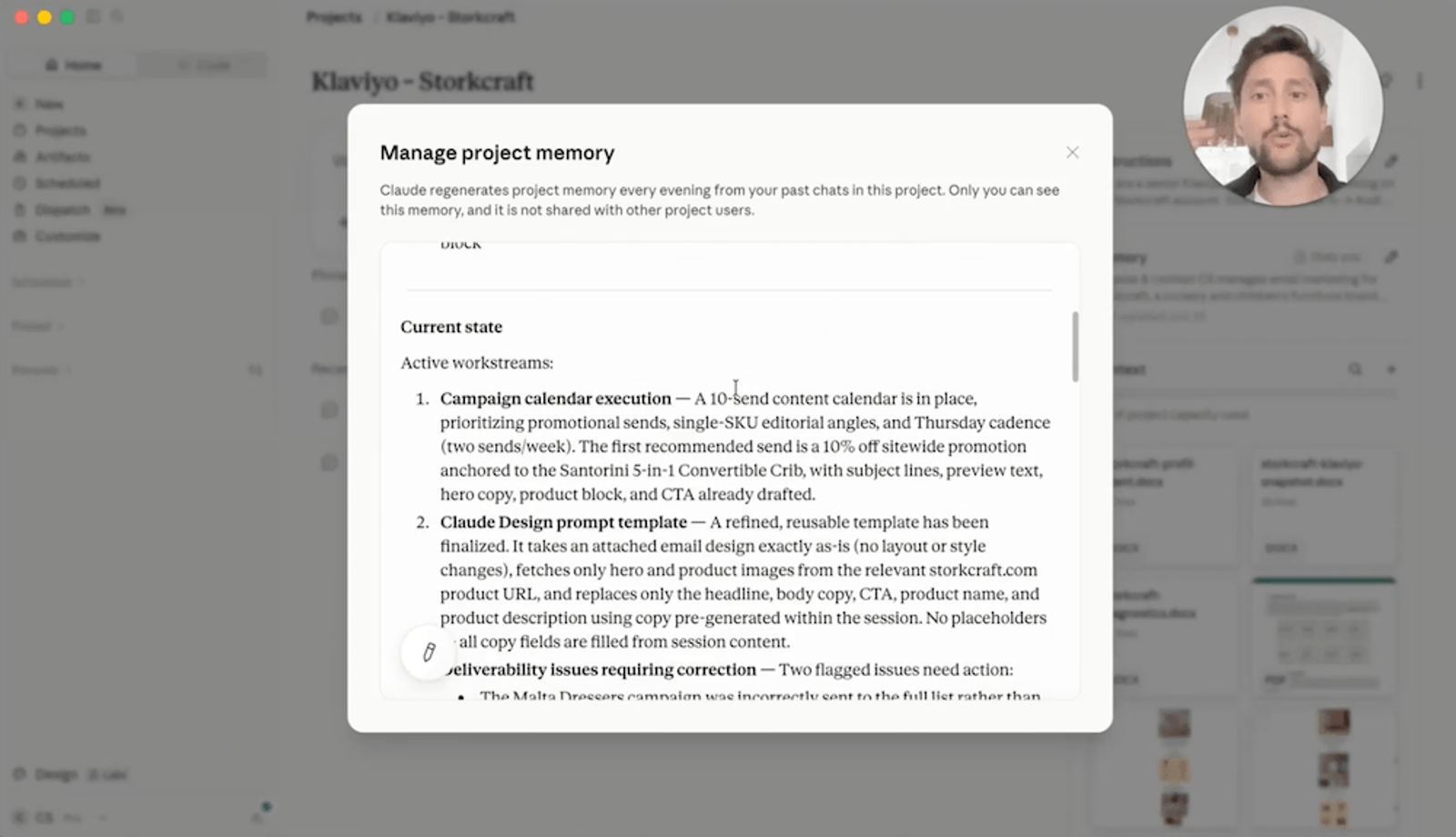
When I start a new chat inside that project, Claude already knows the brand, the design history, and what needs work.
Step 5: Design an email in Claude and push it into Klaviyo
Inside your project, prompt Claude to pull your last 30 days of email campaigns and analyze what worked. Based on that, decide on your next email and build it in Claude Design.
Paste in your prepared prompt, then customize the specifics (site name, headline, CTA, product names) to match your brand. It helps to attach a screenshot of an email style you like, either your own or pulled from a website like Really Good Emails, so Claude Design has something concrete to replicate.
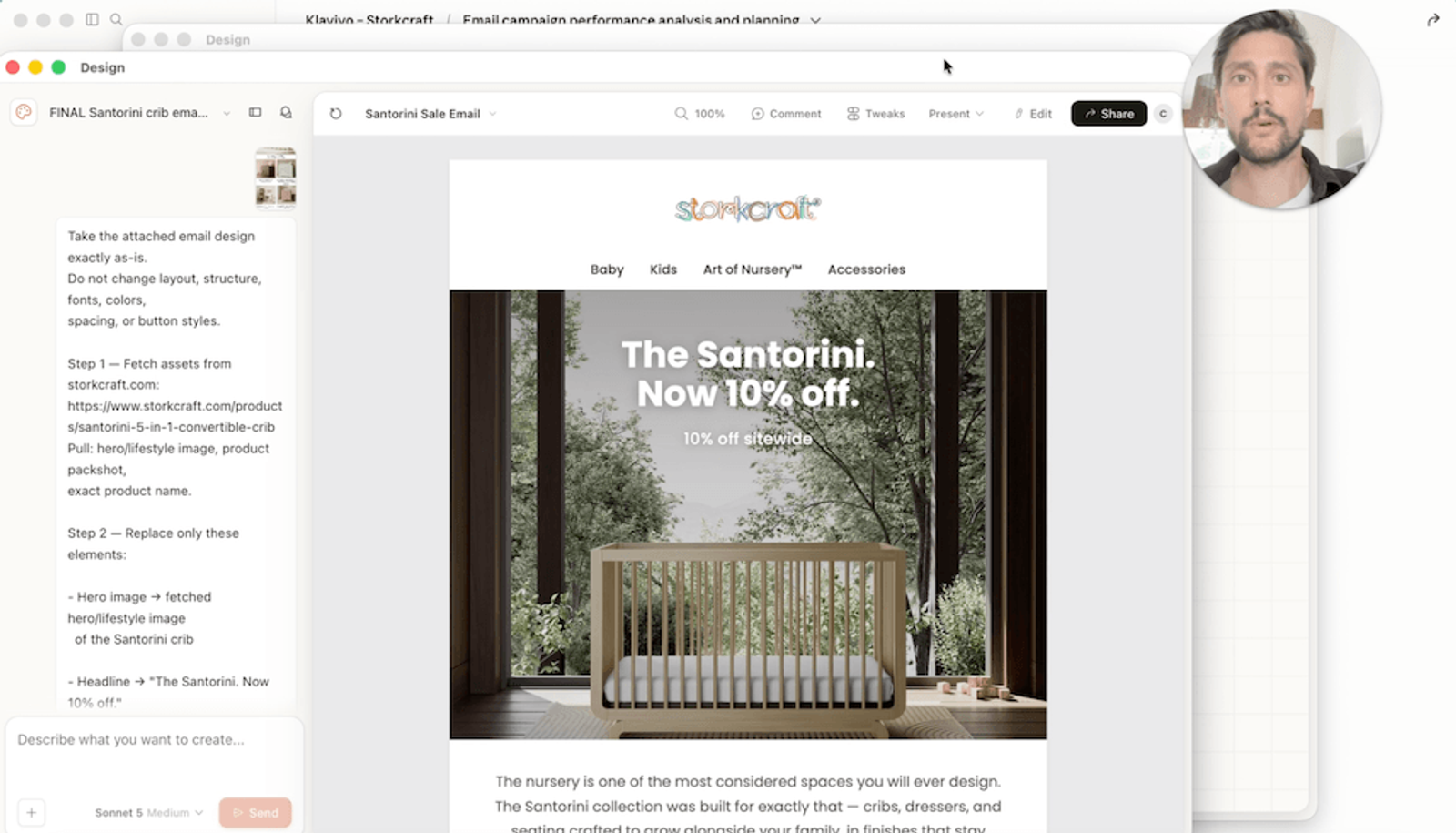
Next, take the code Claude Design generates and paste it into Claude Code. After some back and forth, Claude Code builds an editable link you can open directly in Klaviyo, with the logo, hero image, description, CTA, and product blocks all converted and ready to fine-tune. If you make tweaks afterward, screenshot the result and tell Claude Code to remember the change for next time.
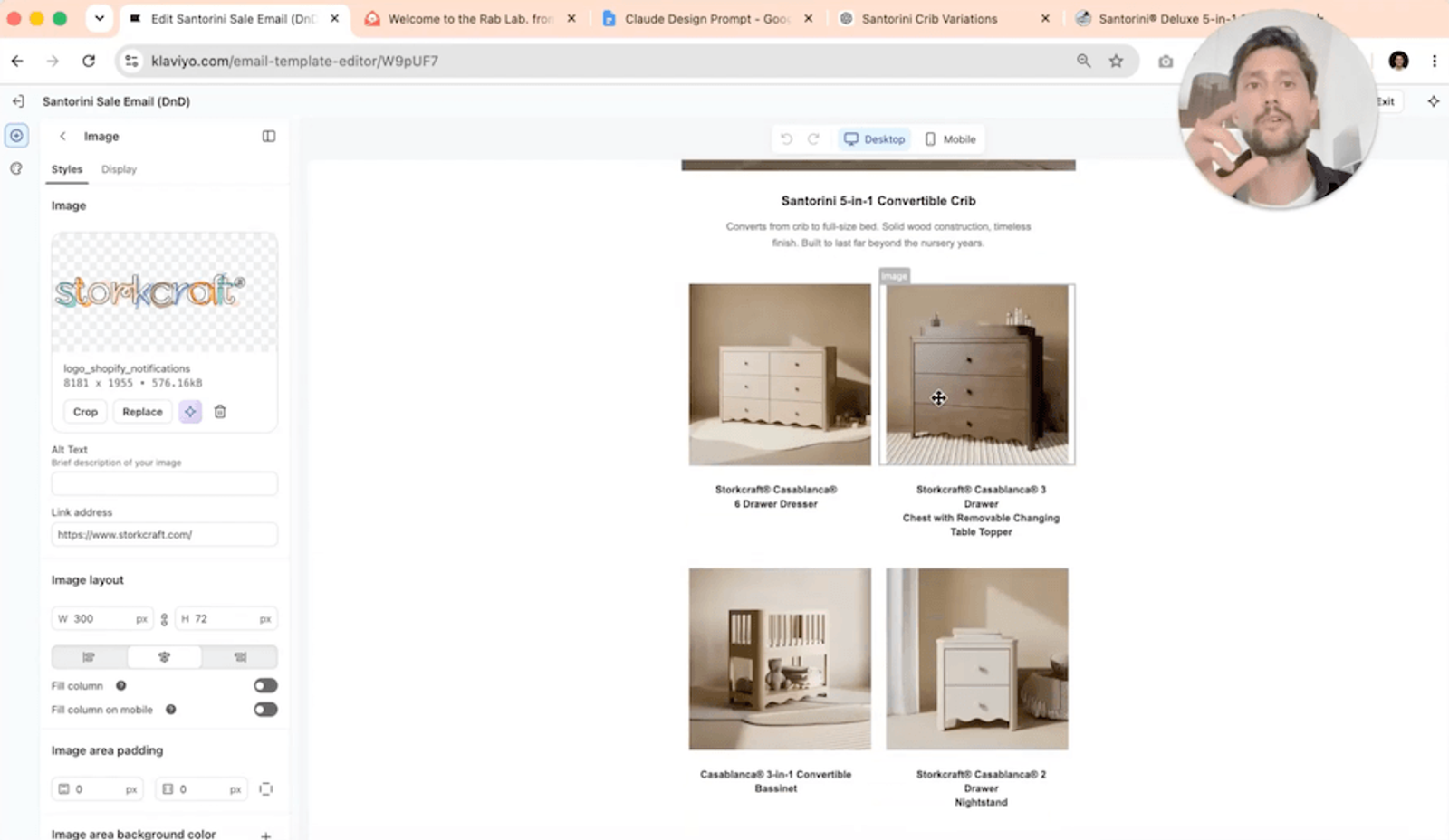
From there, the email's ready to add to a campaign and send.
Step 6: Scale your production
For agencies or brands sending a lot of email, the next step is training Claude Code to work from a stored library of brand assets, including logo, fonts, tone of voice, and design guidelines, so it can generate emails with little manual input.
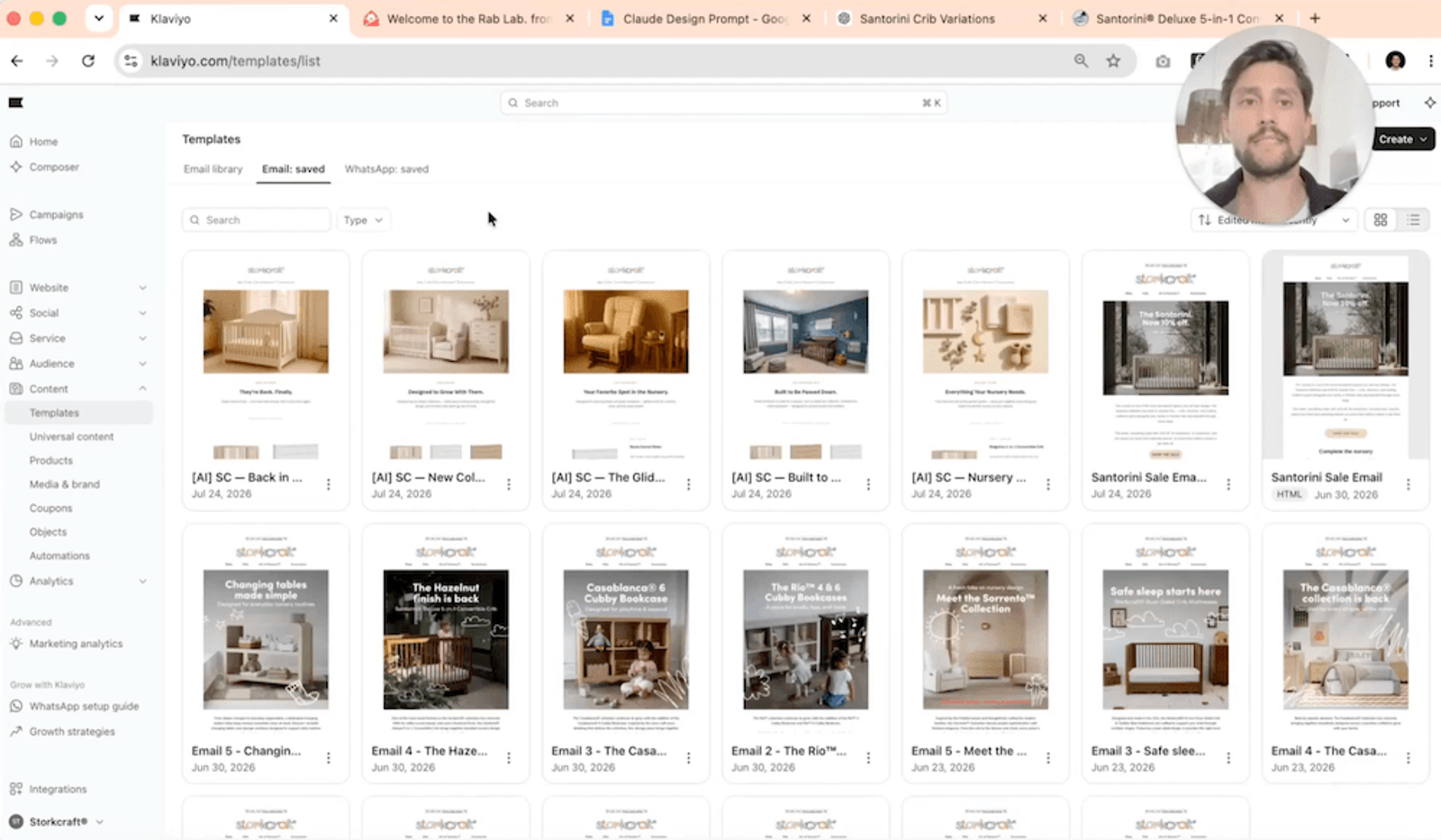
In my own project, I keep templates (e.g., back-in-stock, new collection) that follow a consistent pattern and work on mobile. I can preview any of them directly in Claude Code to check the design before it reaches Klaviyo.
Once I'm happy with a batch, Claude Code pushes them into Klaviyo automatically. Reloading my Klaviyo email list shows the generated drafts sitting there, on-brand and ready for review. You'll still need to tweak some details manually, but the more you train Claude Code on those corrections, the more it can generate on its own, pulling from the campaign calendar you set up in your project.
An alternate route: Claude Design, Figma, and Klaviyo
If you'd rather edit visually before exporting, there's an alternate route. Build the email in Claude Design, then convert it to HTML. Import that file into Figma with the HTML to Design plug-in, which will flag any missing fonts or low-res images before you continue. Adjust copy, images, and layout directly in Figma, then check that your layers are in the right order before exporting.
Connect the Klaviyo plug-in in Figma, export the finished layers, and drop them into a new email or flow, block by block. One exception: leave the unsubscribe and manage-preferences blocks alone. Klaviyo's native versions need to stay in place for compliance.
How I use Klaviyo Composer
Composer runs inside Klaviyo, so it has real-time access to your account data without any connecting or exporting. I connect Claude to Shopify, Klaviyo, and Google Ads for a consolidated view of everything, use ChatGPT for image generation, and rely on Composer for auditing accounts and putting together quick campaigns.
Auditing flows
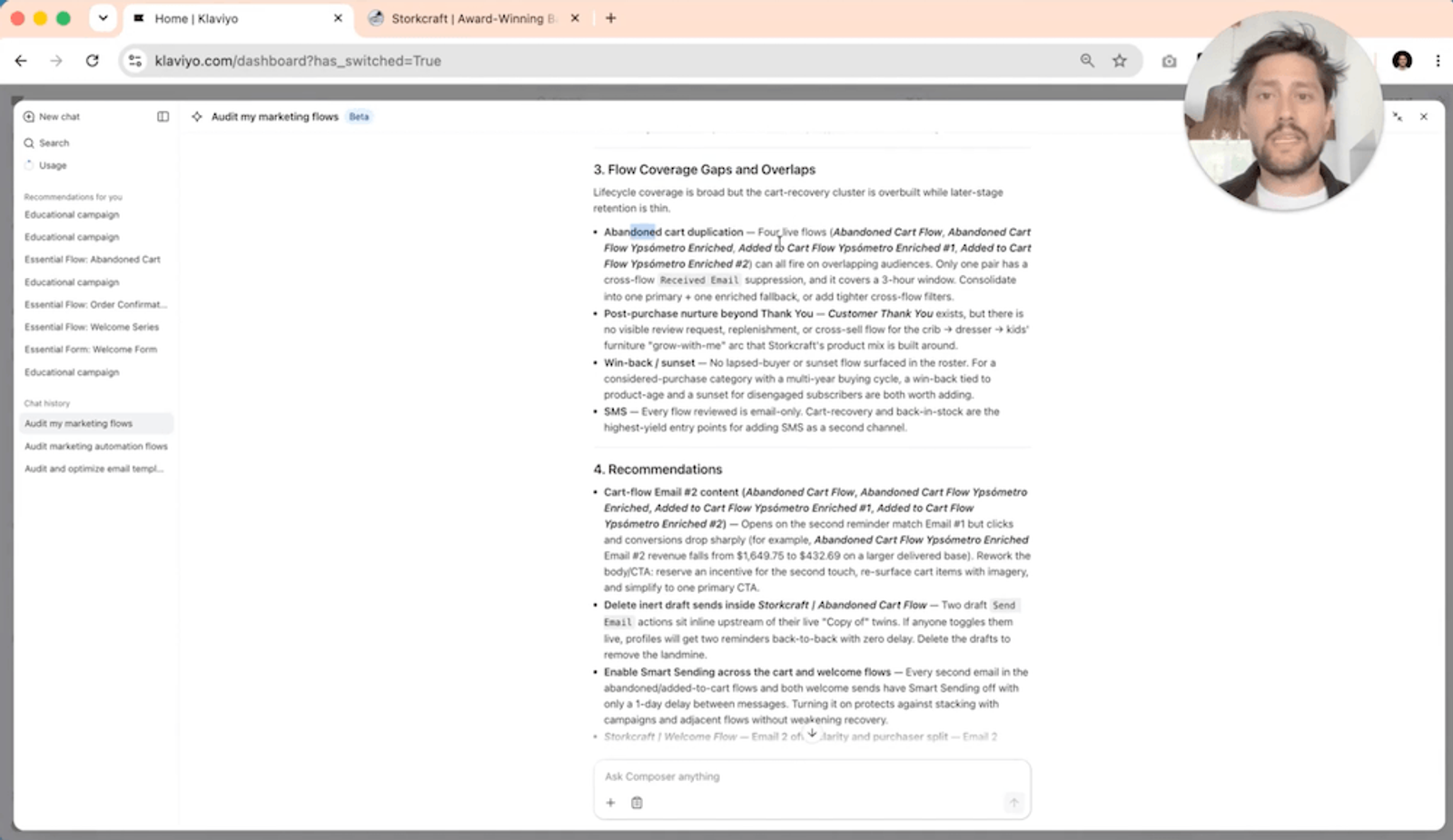
Prompt Composer with "Audit my flows," and it'll flag both wins and gaps. In one audit, that meant a strong back-in-stock and welcome flow, alongside a missing win-back flow, SMS that hadn't been set up, and an abandoned-cart flow with duplicate, overlapping automations.
The recommendations get specific, too, like reworking body copy for urgency, turning on Smart Sending to avoid fatigue, and catching a copy typo. I'd recommend running this audit weekly, especially if you're managing several accounts at once.
Auditing forms
Ask Composer to analyze your pop-ups, and it'll flag fixes like making your CTA button more visible or showing a discount code immediately after sign-up instead of a generic thank you.
Building new flows
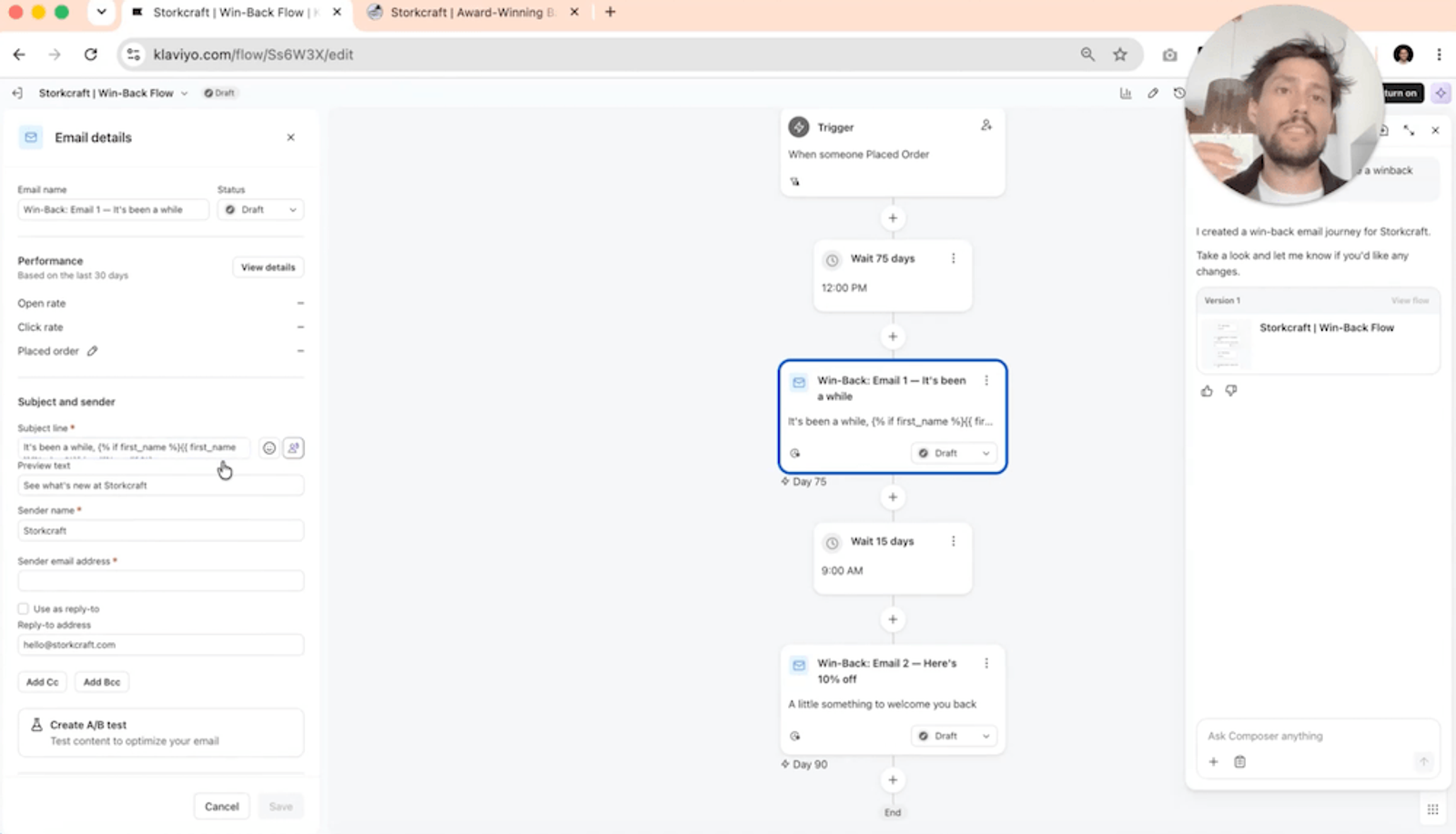
Prompt Composer with something like, "Can you create a win-back flow?" and it builds one from scratch. That includes trigger, timing, subject lines, dynamic product blocks, and mobile-responsive design, all pulled from your existing brand assets and account data.
You can revise it in plain language (e.g., "Fix the main image, remove the copy overlay, match the CTA to email 1") until it's ready, then click “Create flow” to launch.
Claude suggests, you decide
Before, building one email took me about an hour. Now, with Claude and Klaviyo, I can do it in about 5 minutes. I just queue up the send.
Seeing what's broken is one thing. Acting on it is another. Claude and Composer can flag issues, but you're still the one deciding what to act on, what to test, and when to break from the template.
If you only try one thing from this, pick a single flow you send often, and see how much of it Claude and Composer can take off your plate.

Related content