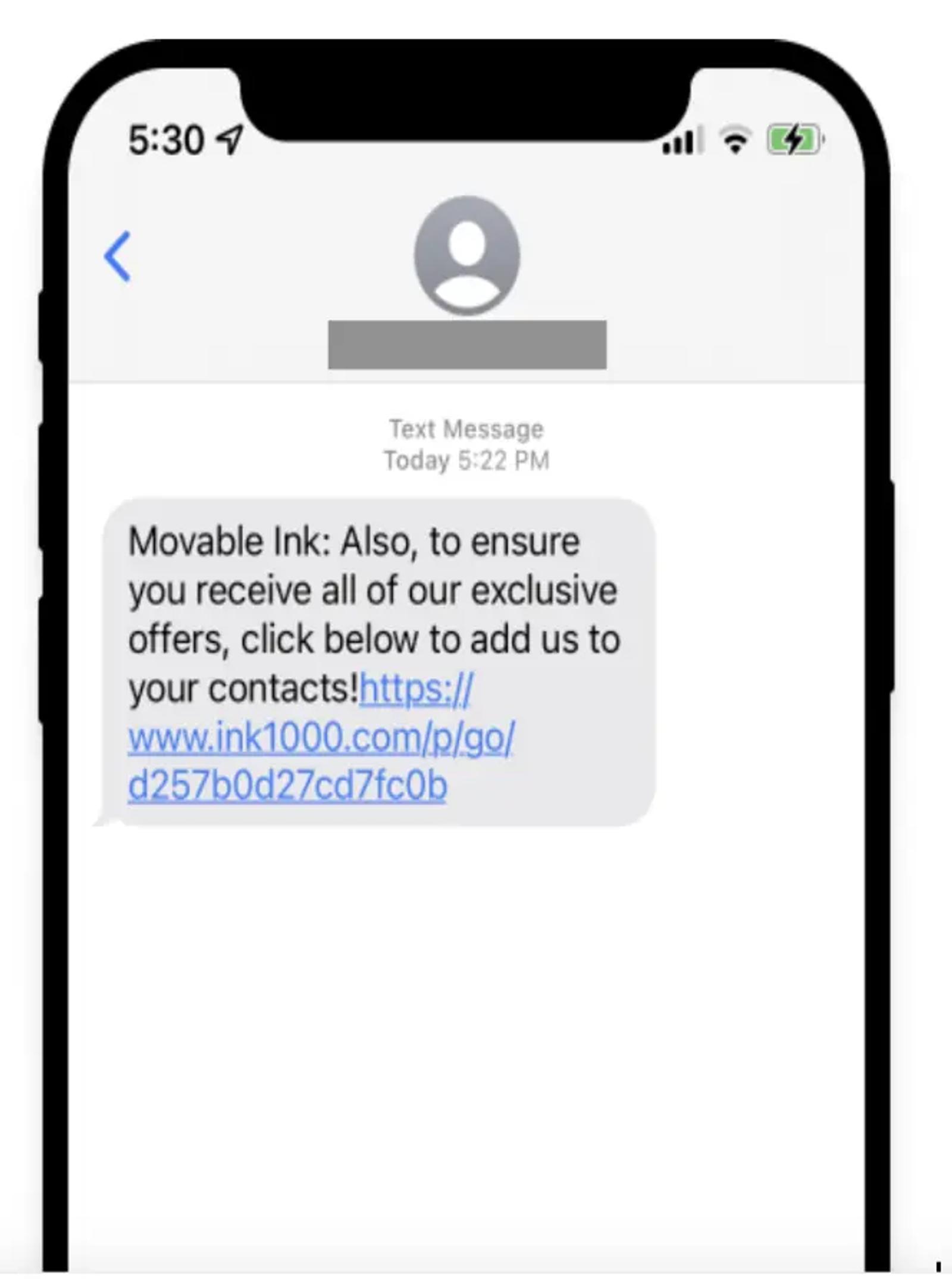
Personalized MMS-like SMS at scale
Generated by Klaviyo AI
The post explains how Klaviyo SMS and Movable Ink work together to deliver personalized, image-rich experiences via SMS link previews. It outlines setup requirements, key personalization use cases, and step-by-step instructions for deploying Movable Ink content and virtual contact cards through Klaviyo.
- Combined SMS solution: Klaviyo orchestrates and sends SMS while Movable Ink powers dynamic link preview images that add a layer of personalization within each message.
- Setup requirements: Marketers need Klaviyo SMS enabled and a Movable Ink Mobile license, and subscribers must explicitly opt in and save the brand as a contact to see link previews.
- Personalization use cases: Movable Ink can use loyalty, behavioral, and contextual data sources to generate personalized visuals for flows like loyalty summaries, abandonment messages, and weather- or location-based content.
- Implementing SMS content: Teams create an SMS campaign in Movable Ink, export the creative tag, and paste the link into Klaviyo’s SMS content and link shortener, ensuring opt-out language appears before the link.
- Virtual contact cards: The article details how to send branded virtual contact cards via Klaviyo MMS and how to power contact cards with Movable Ink’s “Add to mobile contacts” app for broader reach.
This blog was written in collaboration with Sadie Lebow, business development manager at Movable Ink; Dana Chan, content marketing coordinator at Movable Ink; and Nina Ephremidze, partner solutions architect at Klaviyo.

SMS can seem like a limited channel for marketers. It only allows up to 160 characters, and all-text messages leave little room for personalized, rich content. Historically, SMS messages have also been restricted from both an efficiency and cost perspective when it comes to incorporating personalized images that drive conversions.
But this is changing. With Klaviyo and Movable Ink, marketers can deploy the rich messaging experience of MMS with the low cost of SMS through a dynamic link preview image. Using both technologies in tandem is the key to success, as Klaviyo SMS orchestrates and sends the text messages, while Movable Ink works within the message itself by adding a layer of personalization.
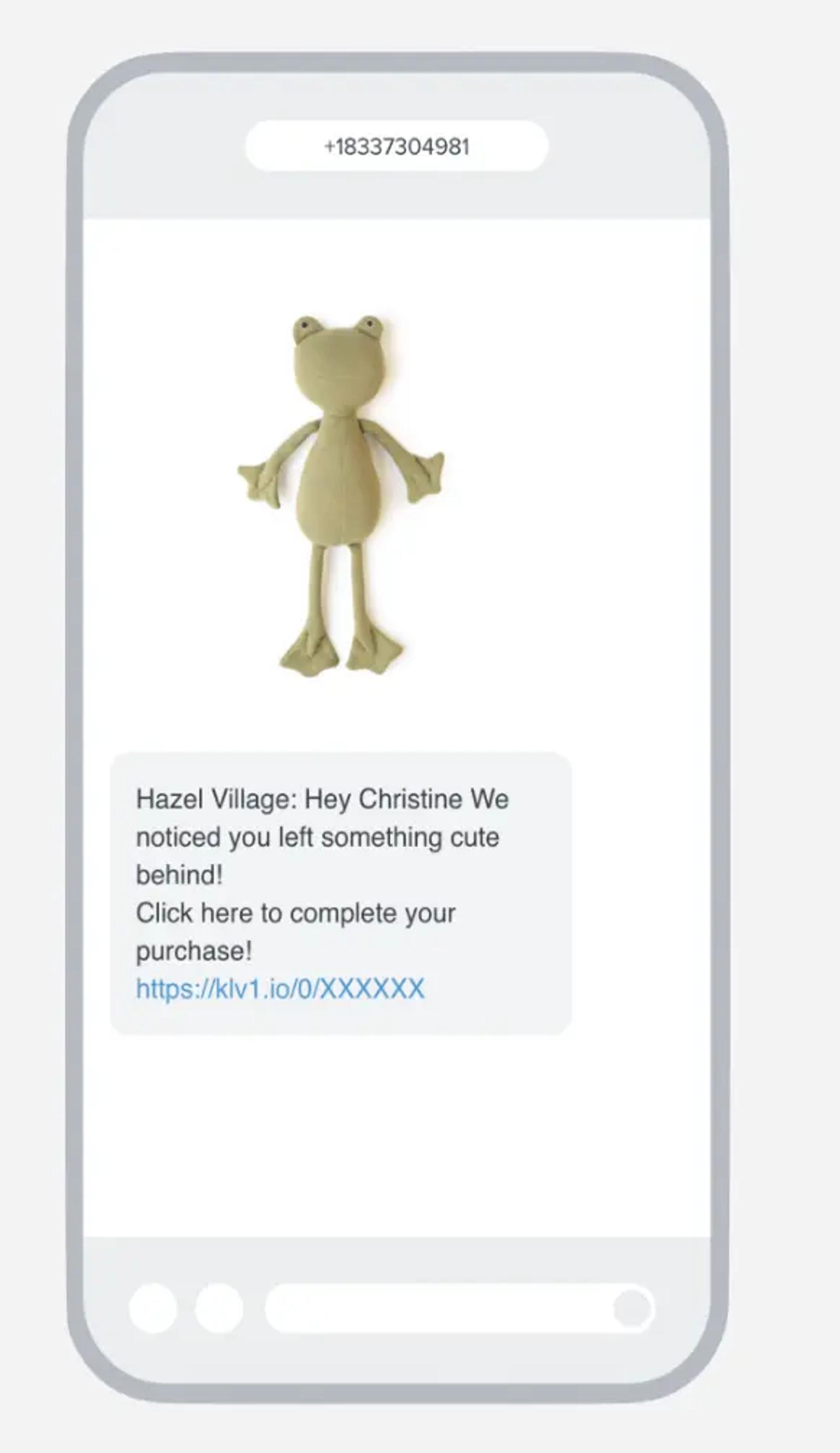
How it works
Movable Ink’s SMS solution is a dynamic link preview image. Within Movable Ink, marketers can connect any data sources and creative. Movable Ink provides the SMS click-through URL which users can easily copy and paste into Klaviyo for deployment, generating hyper-personalized content at scale.
Customers must have the brand saved to their contacts in order to see the link preview image. To get started, you will need:
- A Klaviyo account: In Klaviyo, enable Klaviyo SMS.
- A Movable Ink Mobile license: To learn more about Movable Ink for Mobile, contact your account team.
Use cases
Movable Ink lets marketers leverage any of their existing data and creative sources to generate engaging, personalized content at scale. Data sources can include third party APIs, like Klaviyo’s first or third party data source, contextual data, behavioral data and more. Best-in-class use-cases include:
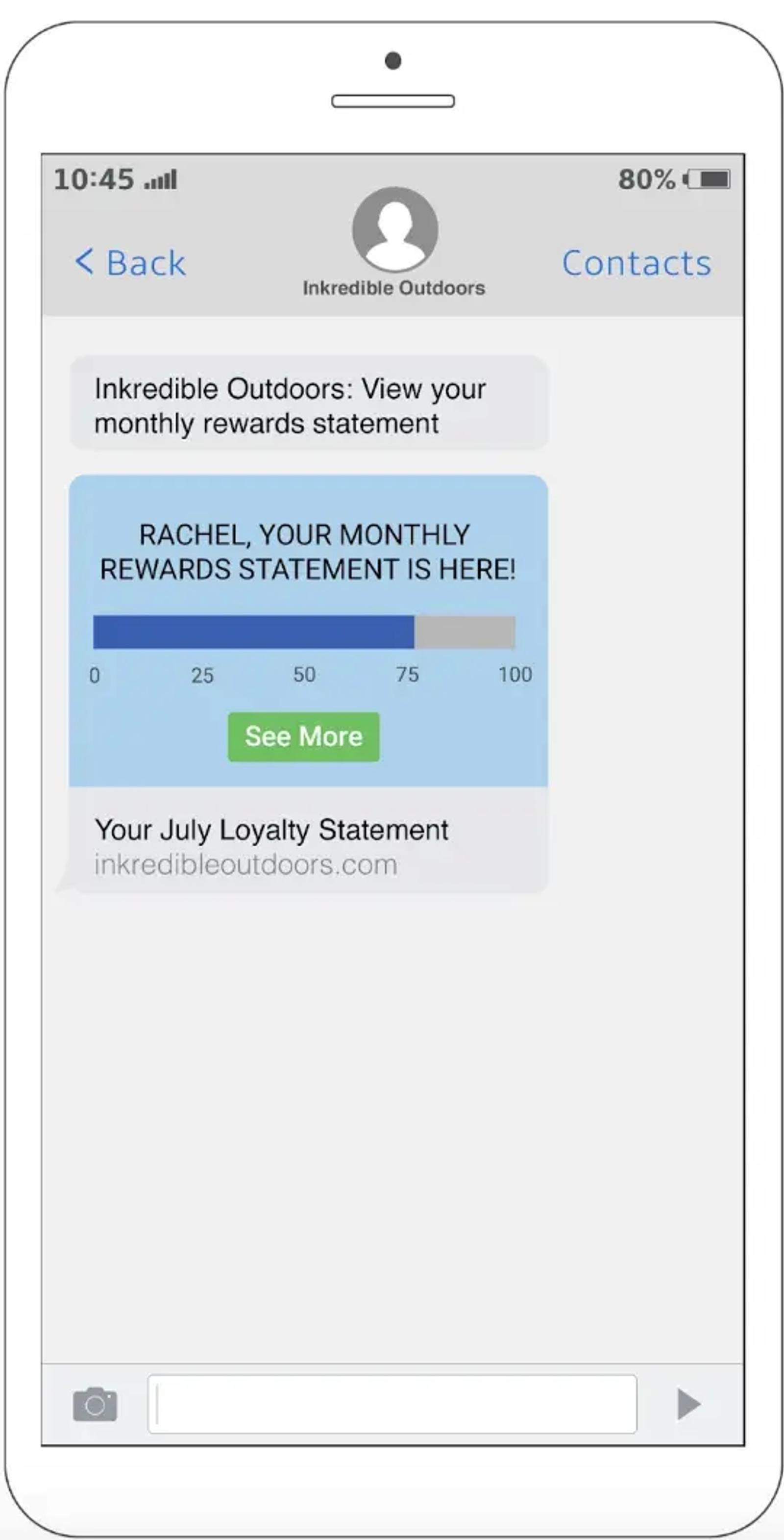
- Loyalty personalization: Use data visualization to display customers’ loyalty program engagement with personalized loyalty summaries. Use any data source to highlight loyalty status, current points balance, past purchases, and more.
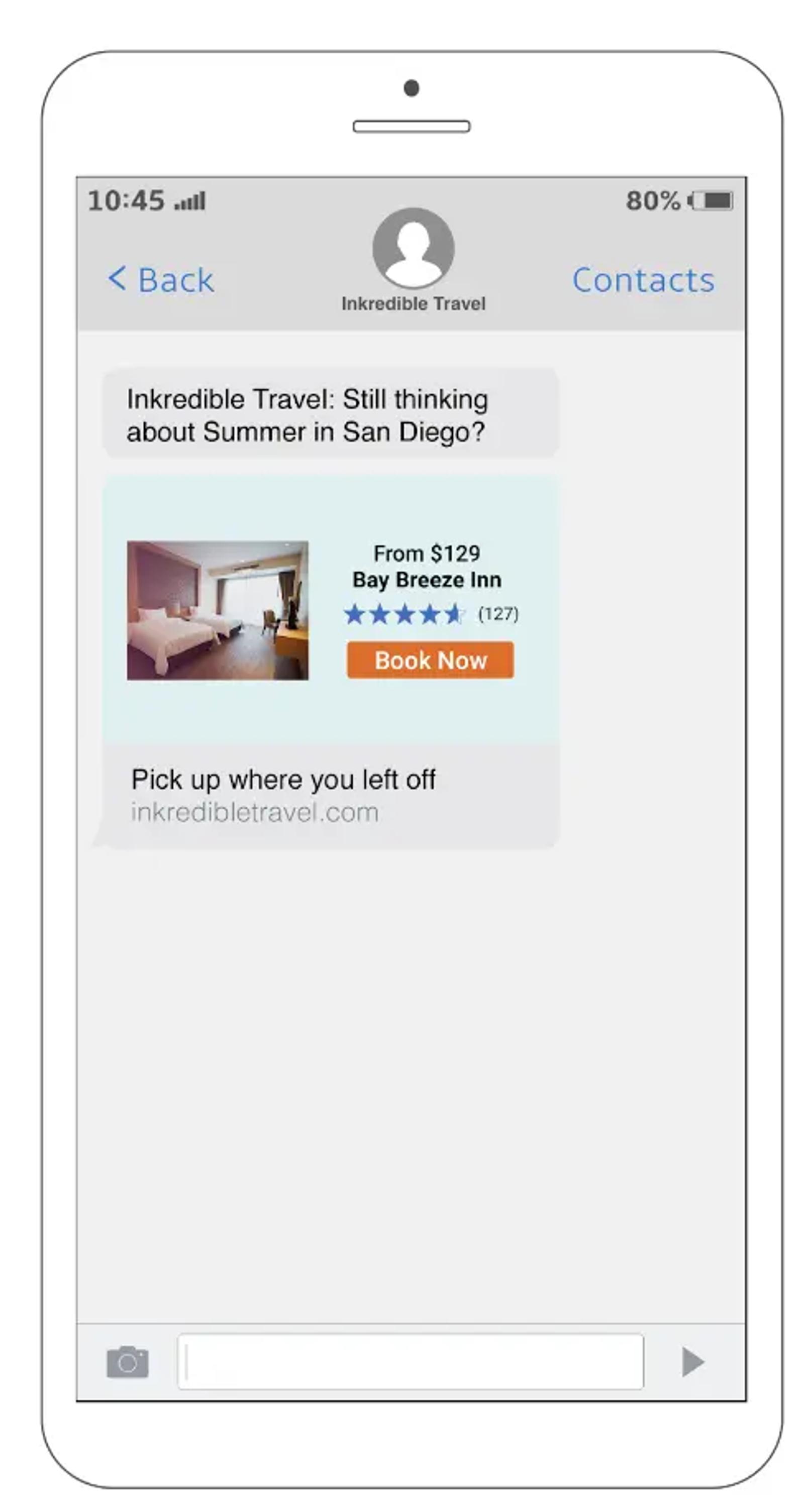
- Behavioral personalization: Personalize images in browse abandonment, cart abandonment, and other Klaviyo flows that are relevant to the customer. Tap into additional data sources to bring in product data, ratings, reviews, inventory, and more.
Contextual personalization: Generate dynamic content that is contextually relevant to the customer, such as weather forecasts or store locators.
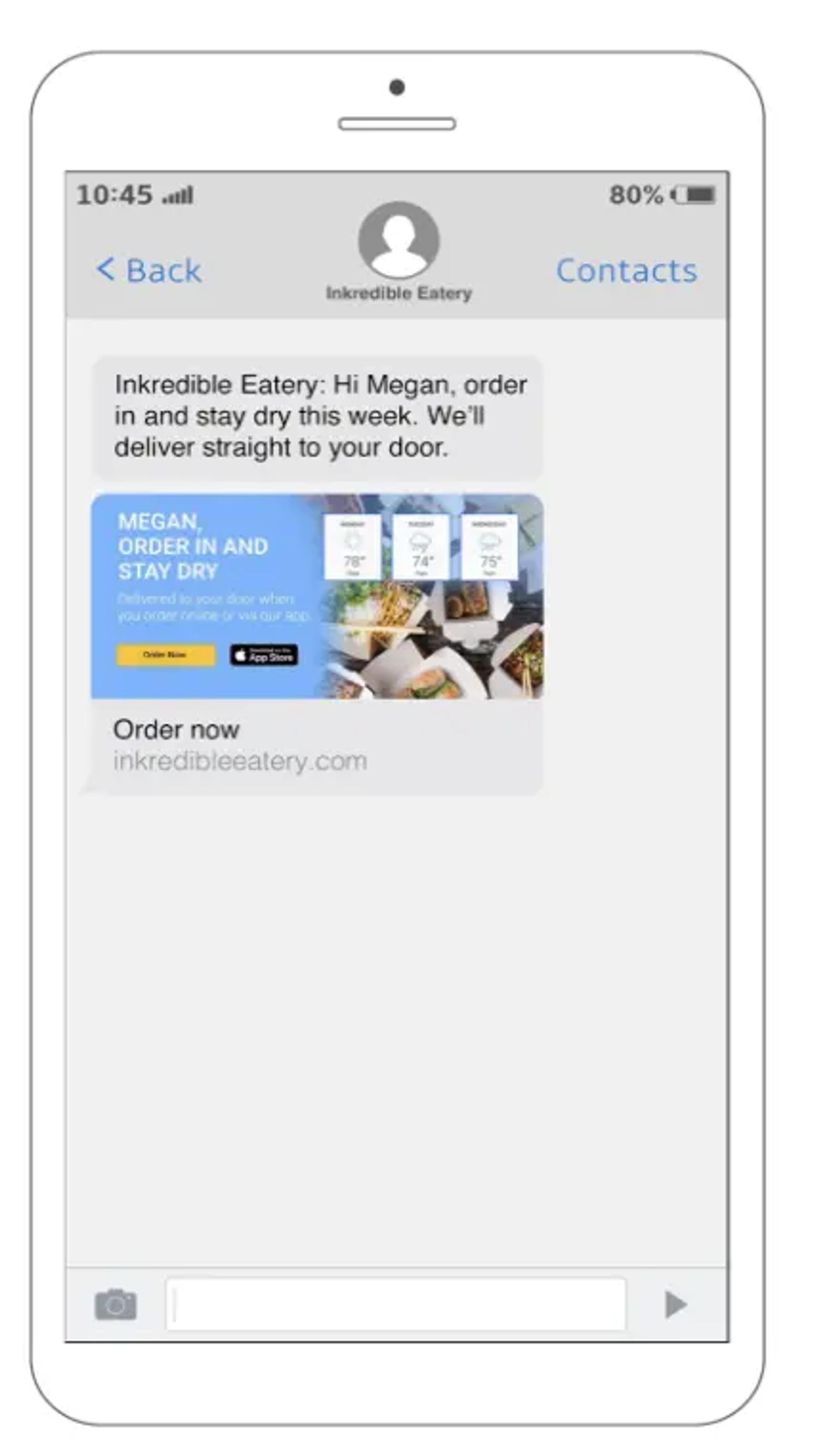
Sending Movable Ink content in a Klaviyo SMS
To get started, you’ll need to implement the following steps on Klaviyo’s side:
Note: SMS requires explicit opt-in from subscribers, so make sure that customers have given permission before sending any messages.
Using Movable Ink links in Klaviyo SMS
Since Movable Ink powers a dynamic link preview, sending Movable Ink content through Klaviyo in the SMS channel is as simple as copying the Movable Ink link and using this as the clickthrough URL for an SMS in Klaviyo.
To send Movable Ink content in SMS, you must have a Movable Ink Mobile license:
- Create a campaign within Movable Ink for the SMS channel.
- When building the campaign, create a block and set up your creative, business logic, and click-through URL.
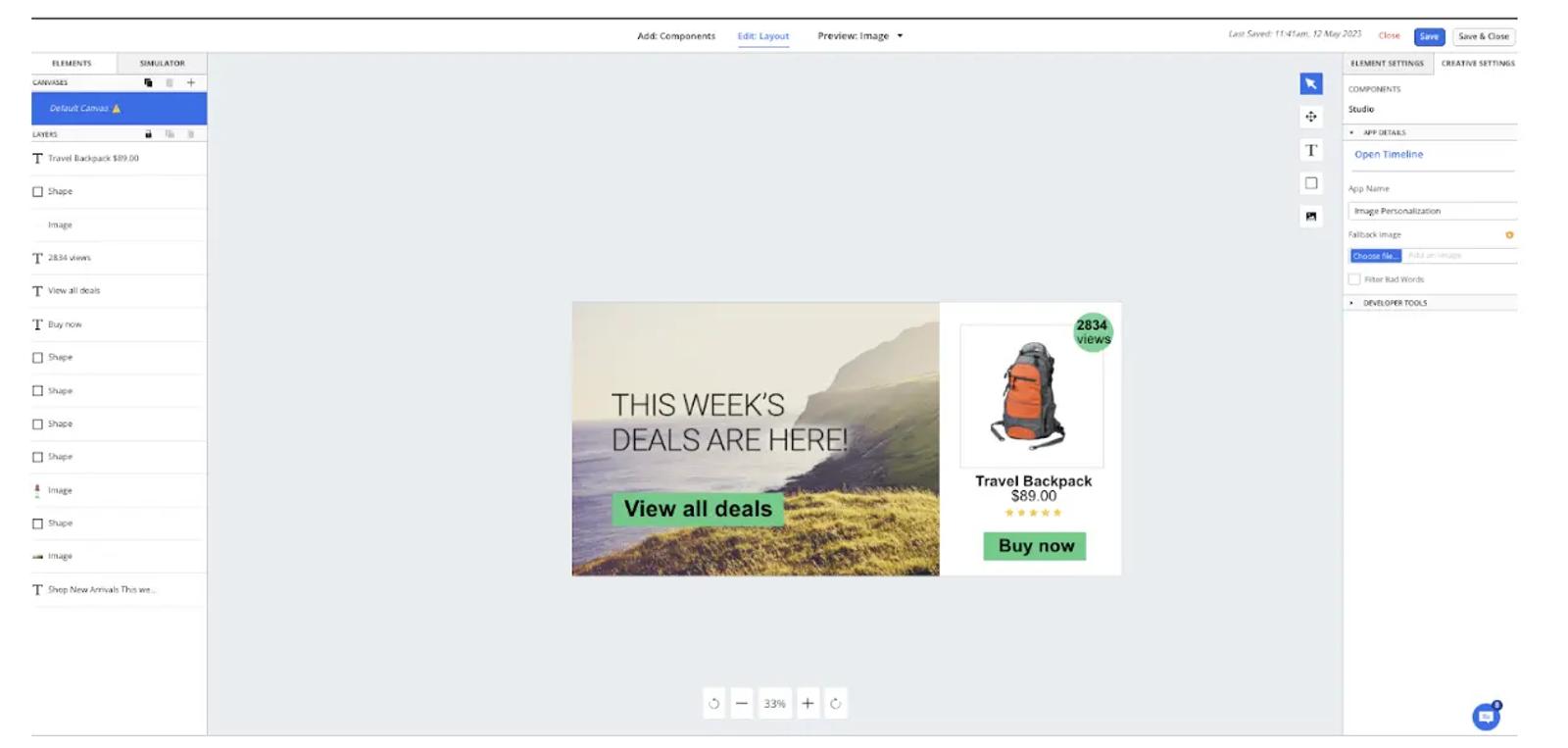
3. Click “Export creative tags.” Copy your creative tag within Movable Ink.
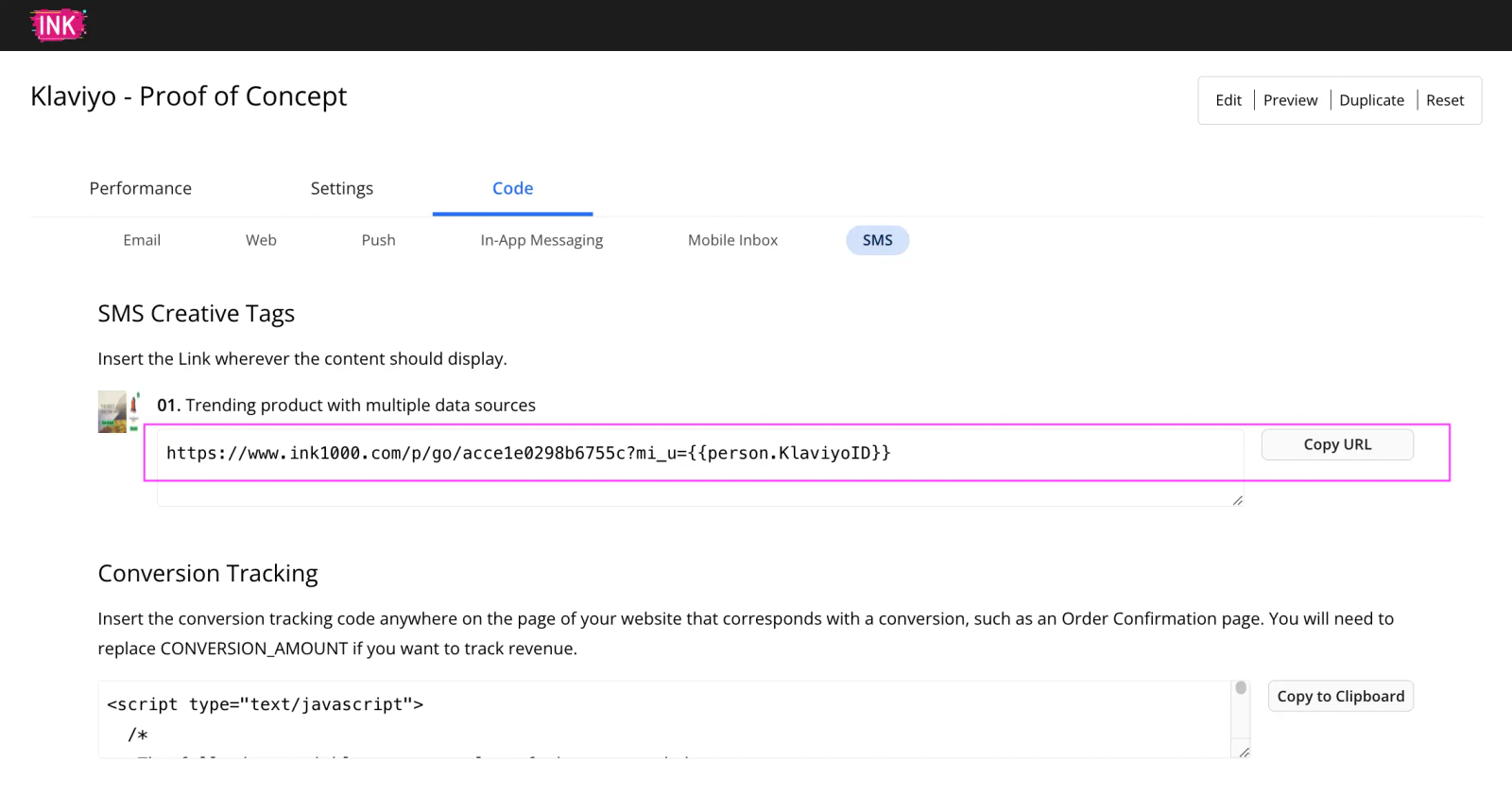
4. Navigate to Klaviyo and set up your SMS campaign. Paste the Movable Ink link into Klaviyo’s link shortener.In the “Content” tab of your Klaviyo campaign, paste the SMS link preview creative tag within the “Message content” text box at the very end of the body text.
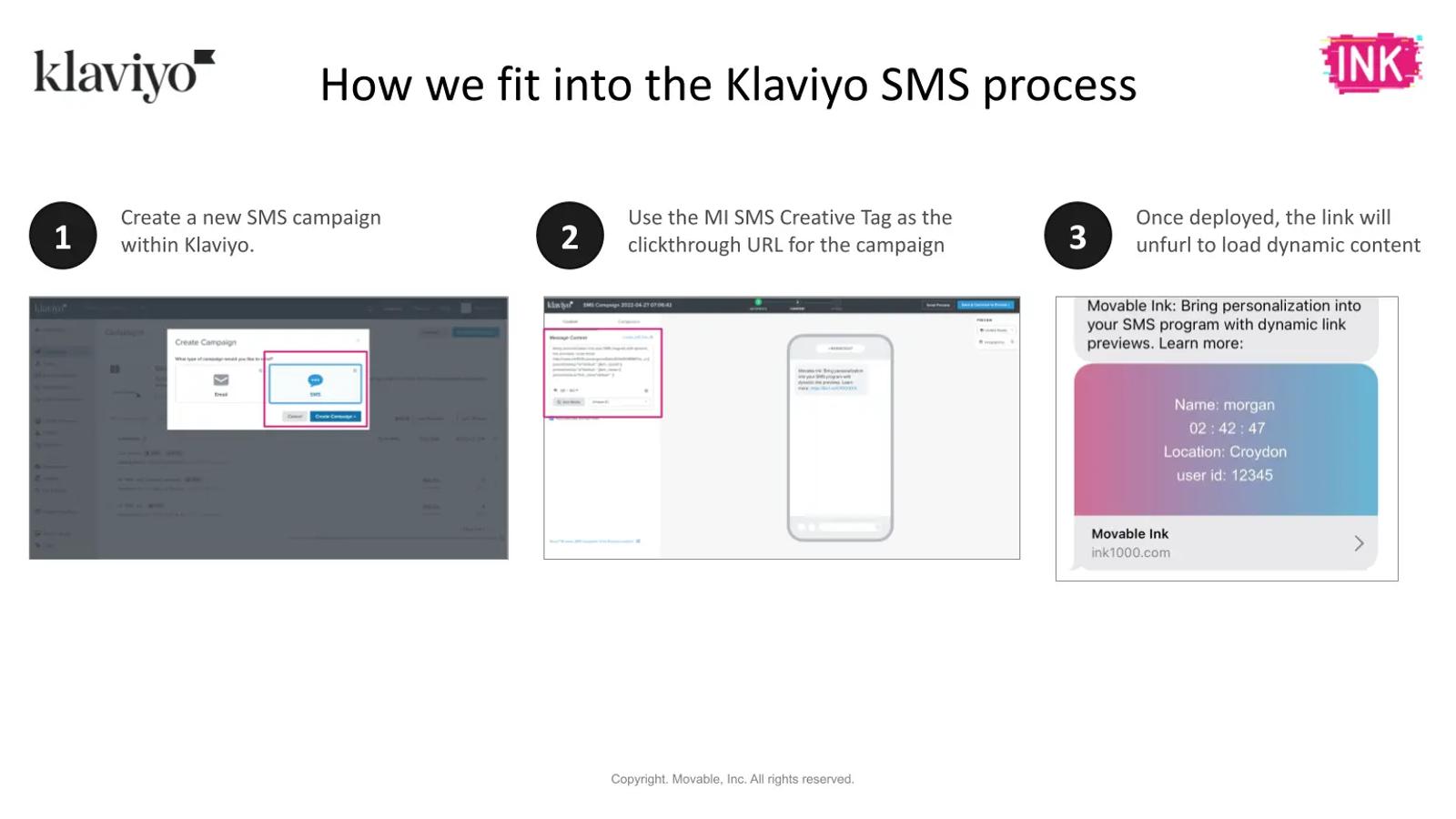
5. Send a preview message to yourself and deploy.
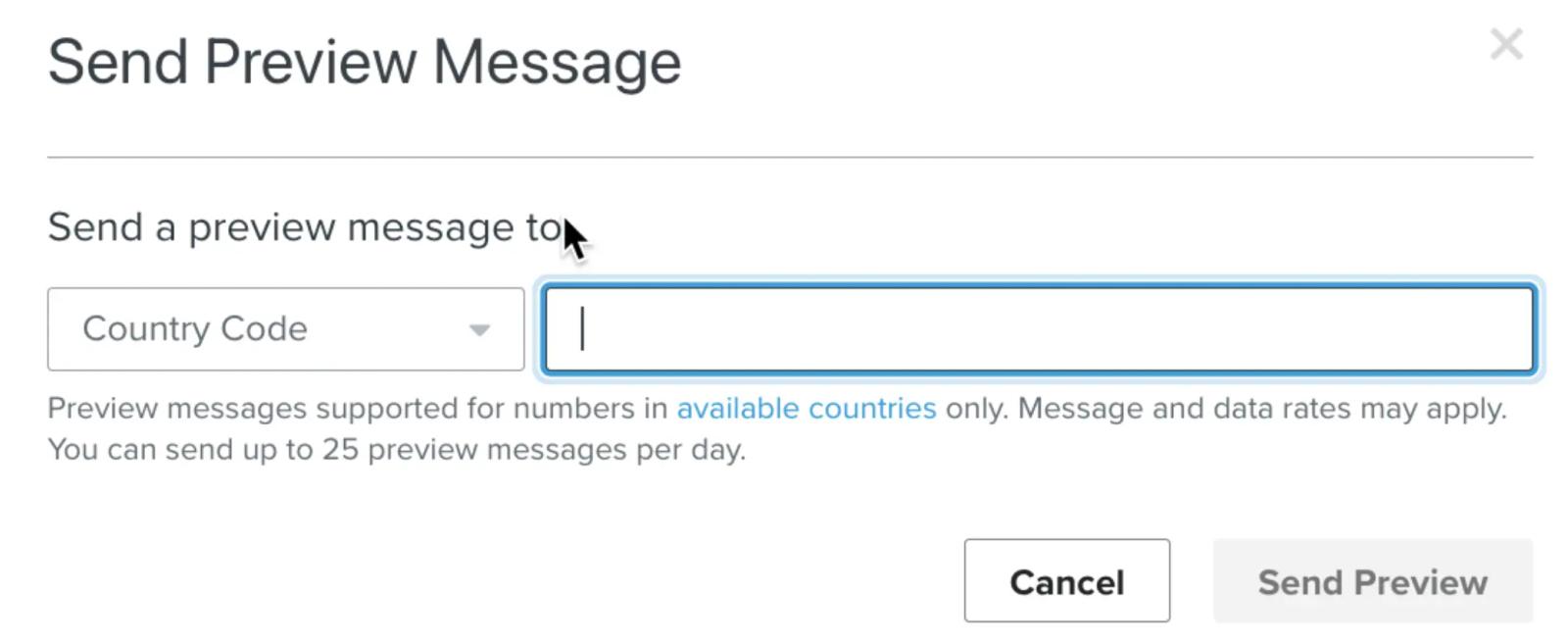
Note: Inclusion of any copy or characters after the link will break the experience. Make sure that you add opt-out language before the link. In Klaviyo, click “Compliance” and toggle “Unsubscribe instructions” off to prevent opt-out text from being automatically added after the link.
Sending a virtual contact card
Users need to have the sender saved in their contacts in order to load link preview images. Contact cards are not only a great way to create a branded experience in the inbox, but can also help increase the audience reach.
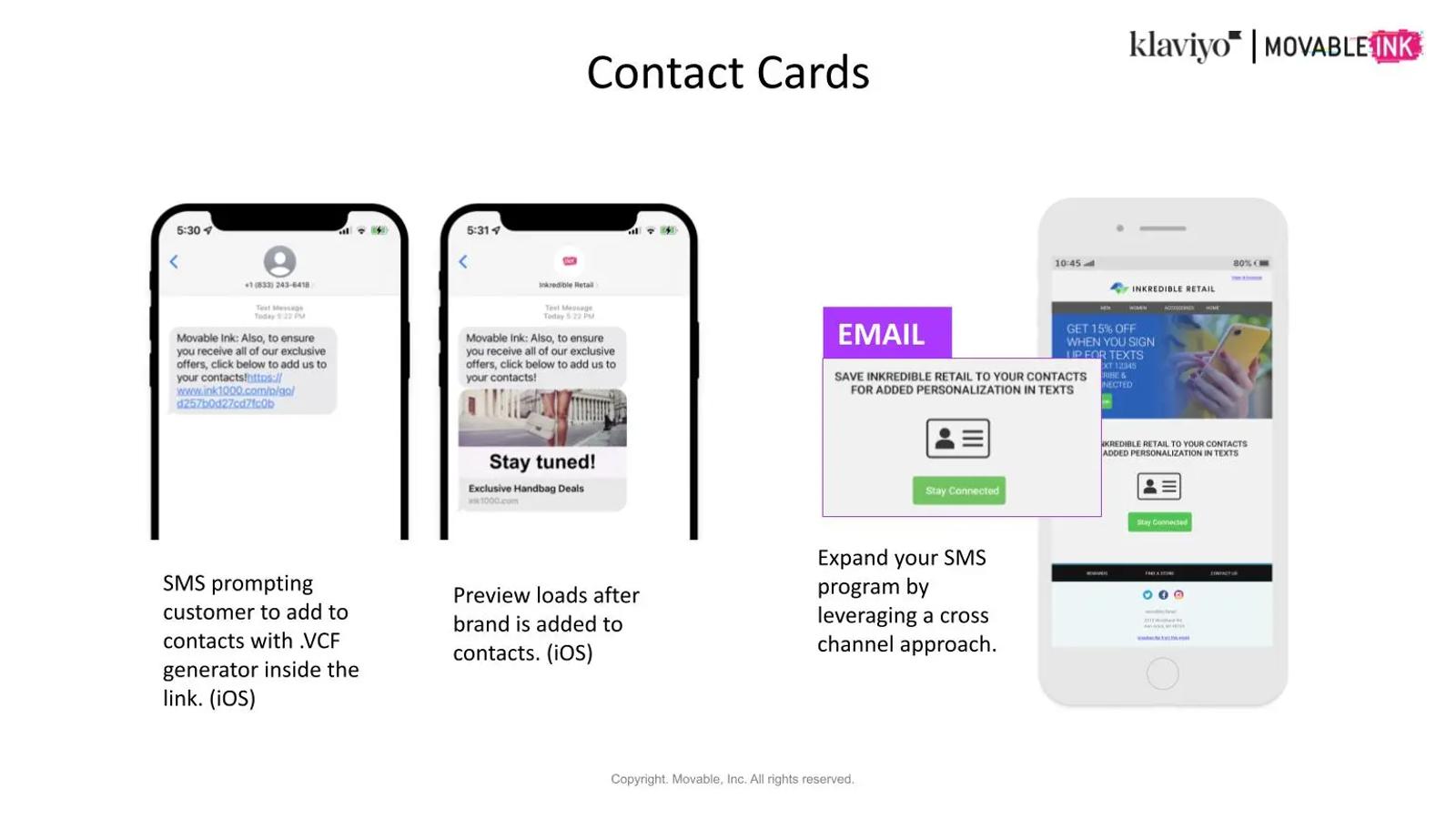
To send a contact card via MMS in Klaviyo:
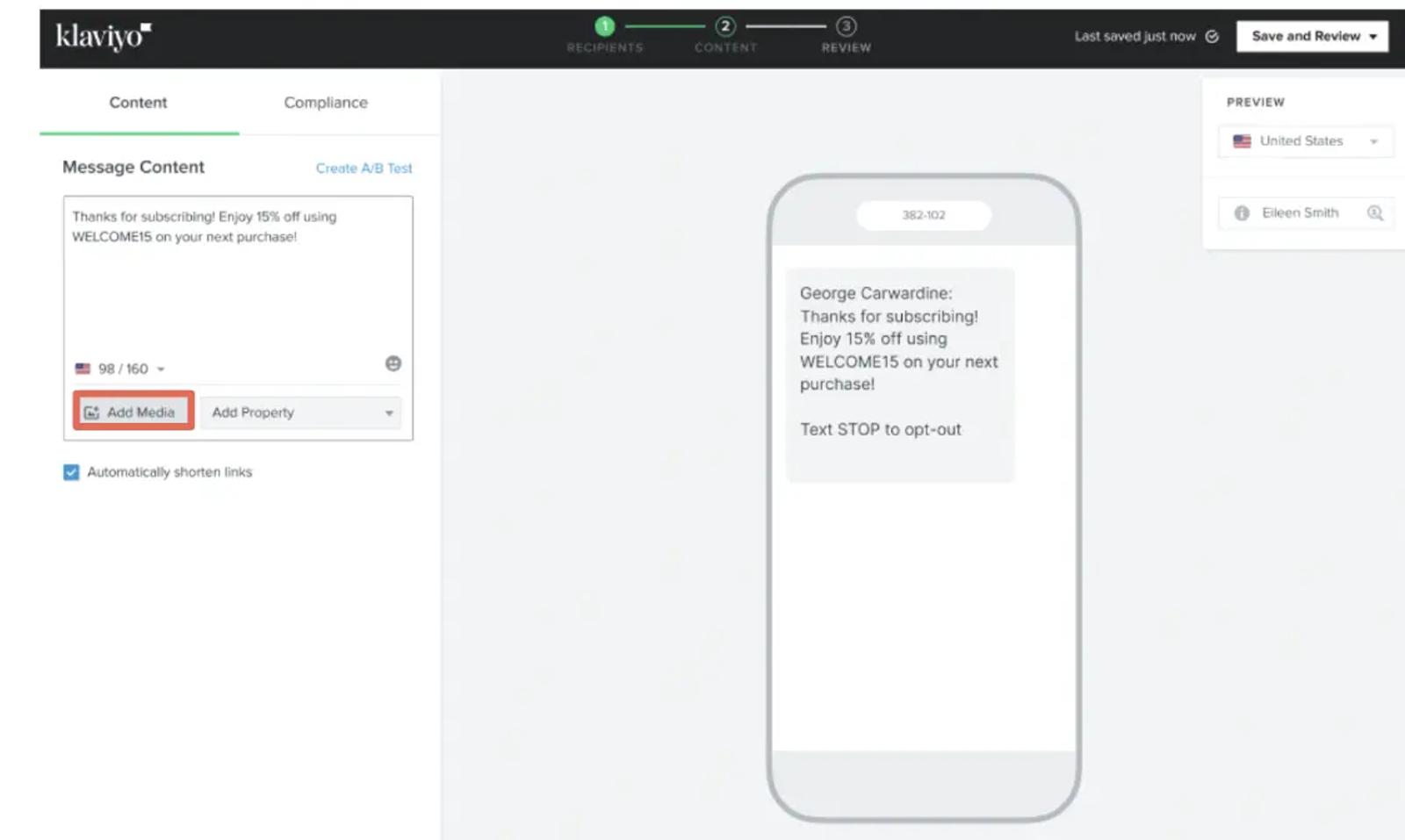
- Click “Add Media” just below the “Message content” section of the design screen.
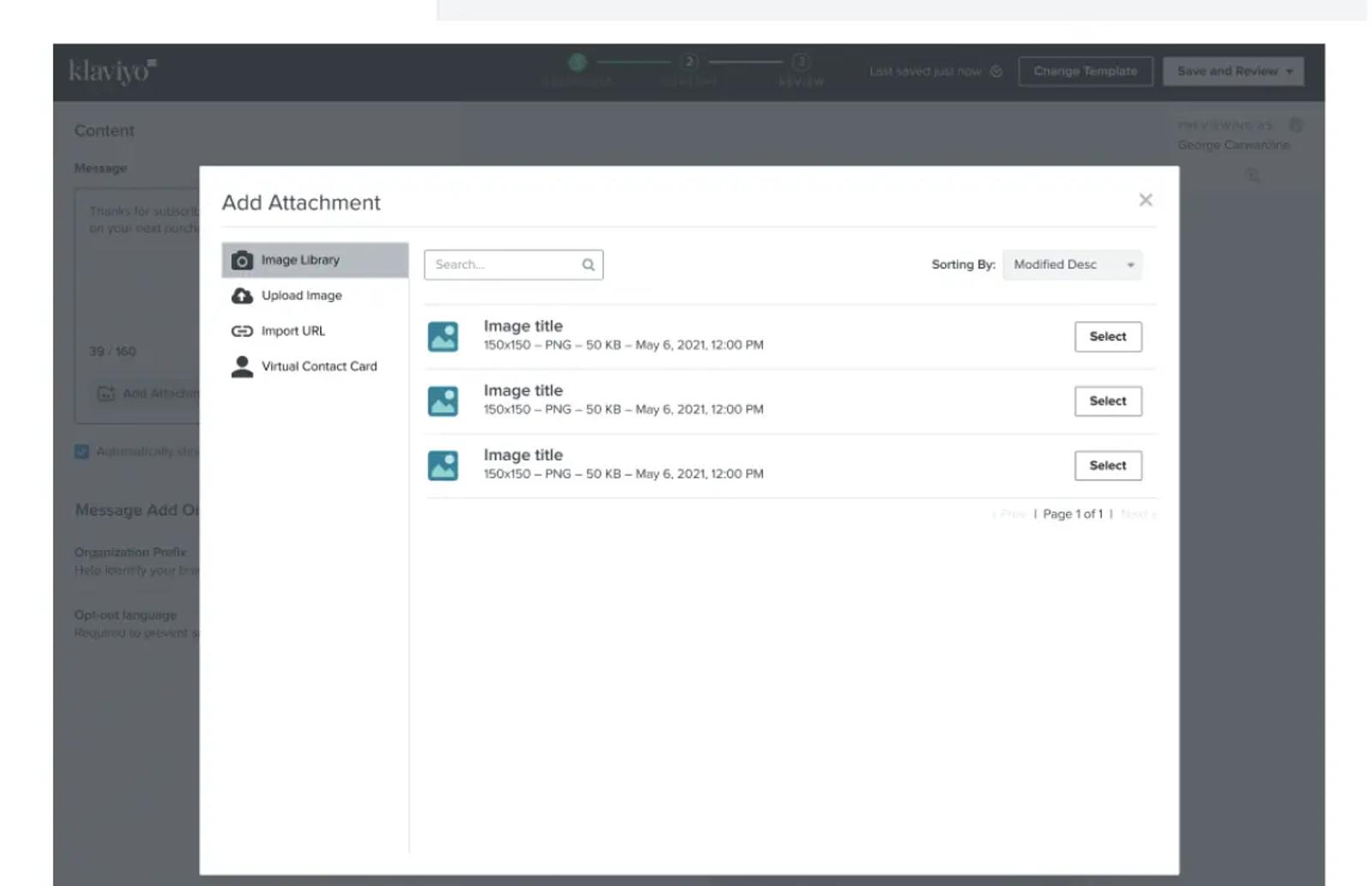
2. Click “Virtual contact card” on the left-hand side of the screen.
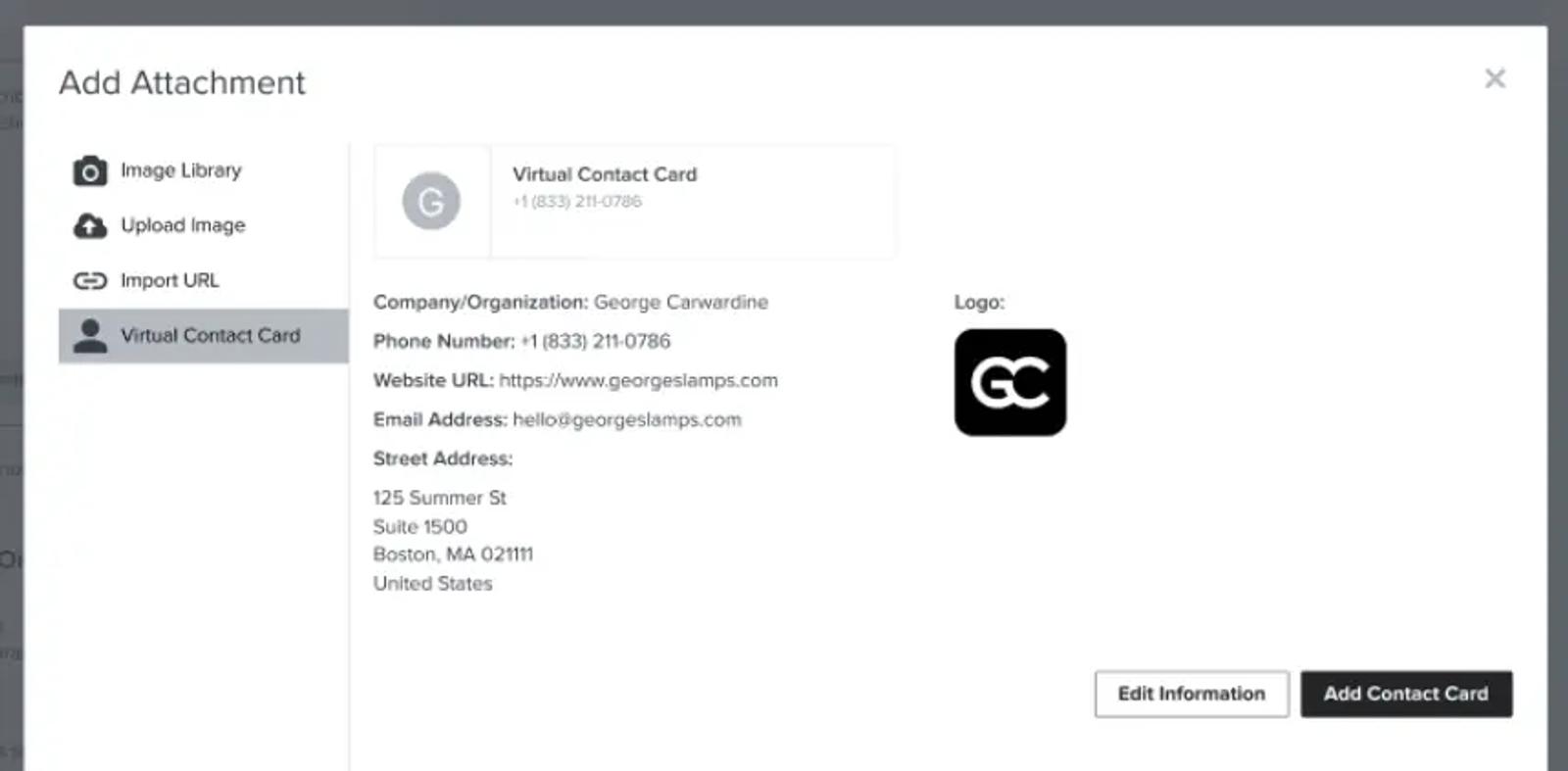
3. Click “Add contact card” to append your brand’s virtual contact card to the message.
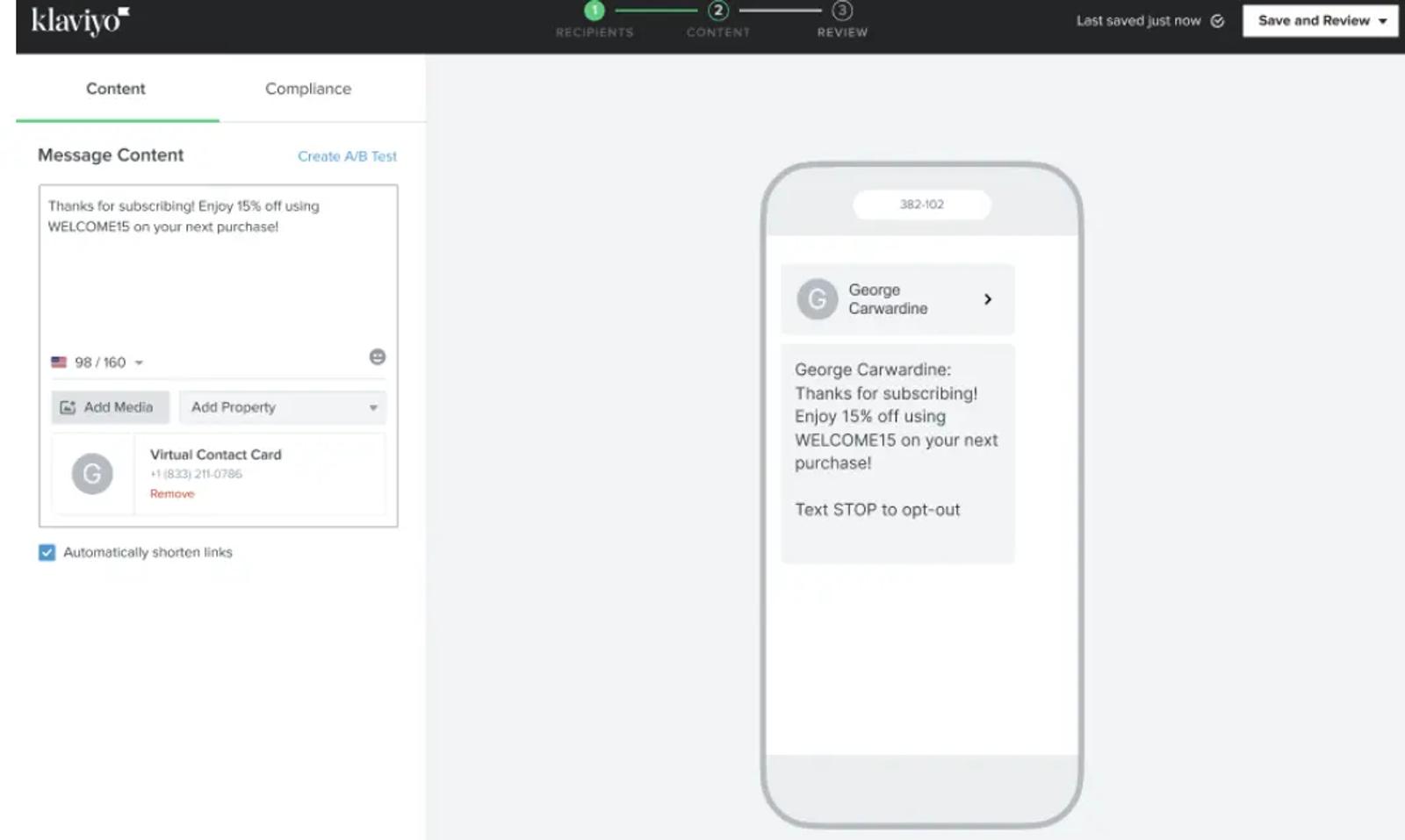
4. Optional: click “Edit information” to make any changes to your brand’s virtual contact card details. Preview the contact card once it’s added to the message.
To send a contact card powered by Movable Ink:
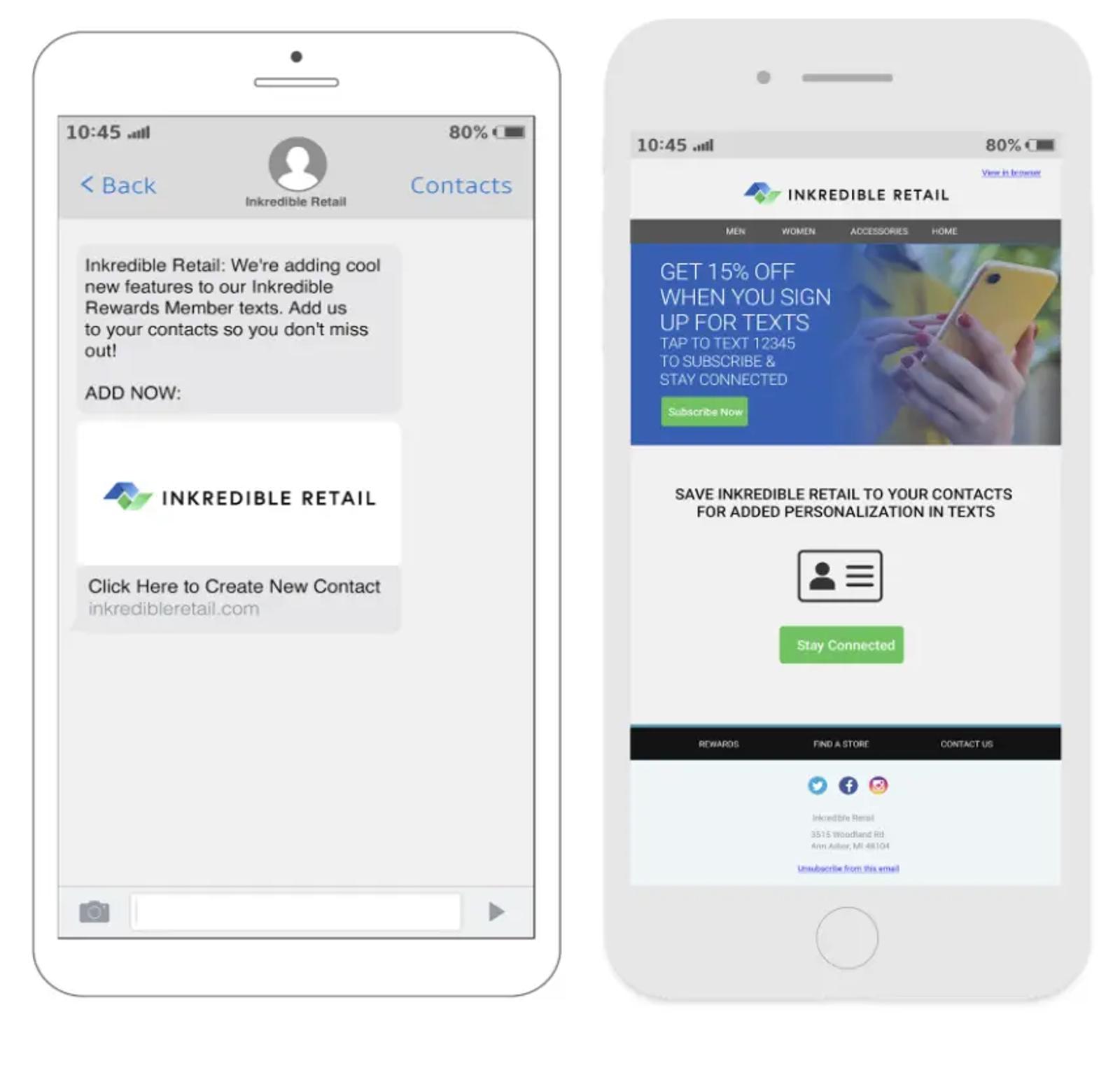
- In the Movable Ink platform, set up a contact card campaign by using Movable Ink’s “Add to mobile contacts” app. This can be used in mobile app messages, SMS, or email.
- Click “Finish and export” and copy the Movable Ink link. Paste this link into your Klaviyo campaign and deploy your message.